
For Android TV and Google TV
 PPT TV Viewer
Your slides on the big screen. Your remote is the clicker.
Present .pptx and PDF slides full screen on your Android TV or Google TV, step through them with the TV remote, and leave the laptop and HDMI cable at home.
Coming soonon Google Play
See how it works- Free
- No account
- No ads or tracking in the app
- Works offline

Features
Everything you need to present. Nothing you don’t.
PPT TV Viewer is a viewer, not an editor, so every screen stays simple to use from the sofa.
-
Builds, click by click
Slides fill the screen and animated builds appear one click at a time, so you reveal each point as you talk. Motion effects are not played.
-
Slide overview
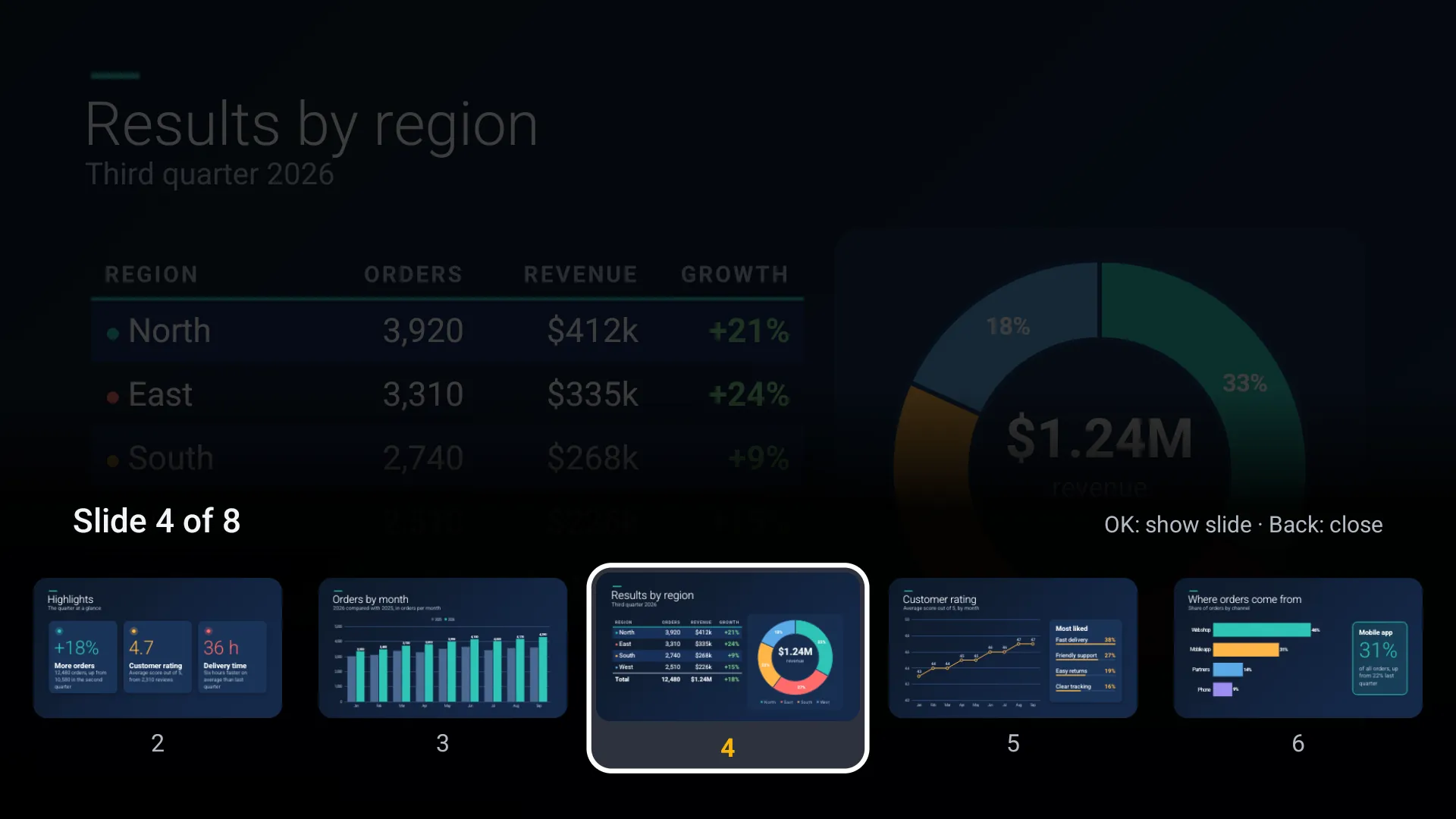
Press Up or Down to browse all your slides and jump straight to the one you need.
-
Black or white screen
Blank the screen to pull attention back to you, then carry on where you left off. Works from a keyboard, a clicker or the Play/Pause key.
-
Receive from phone
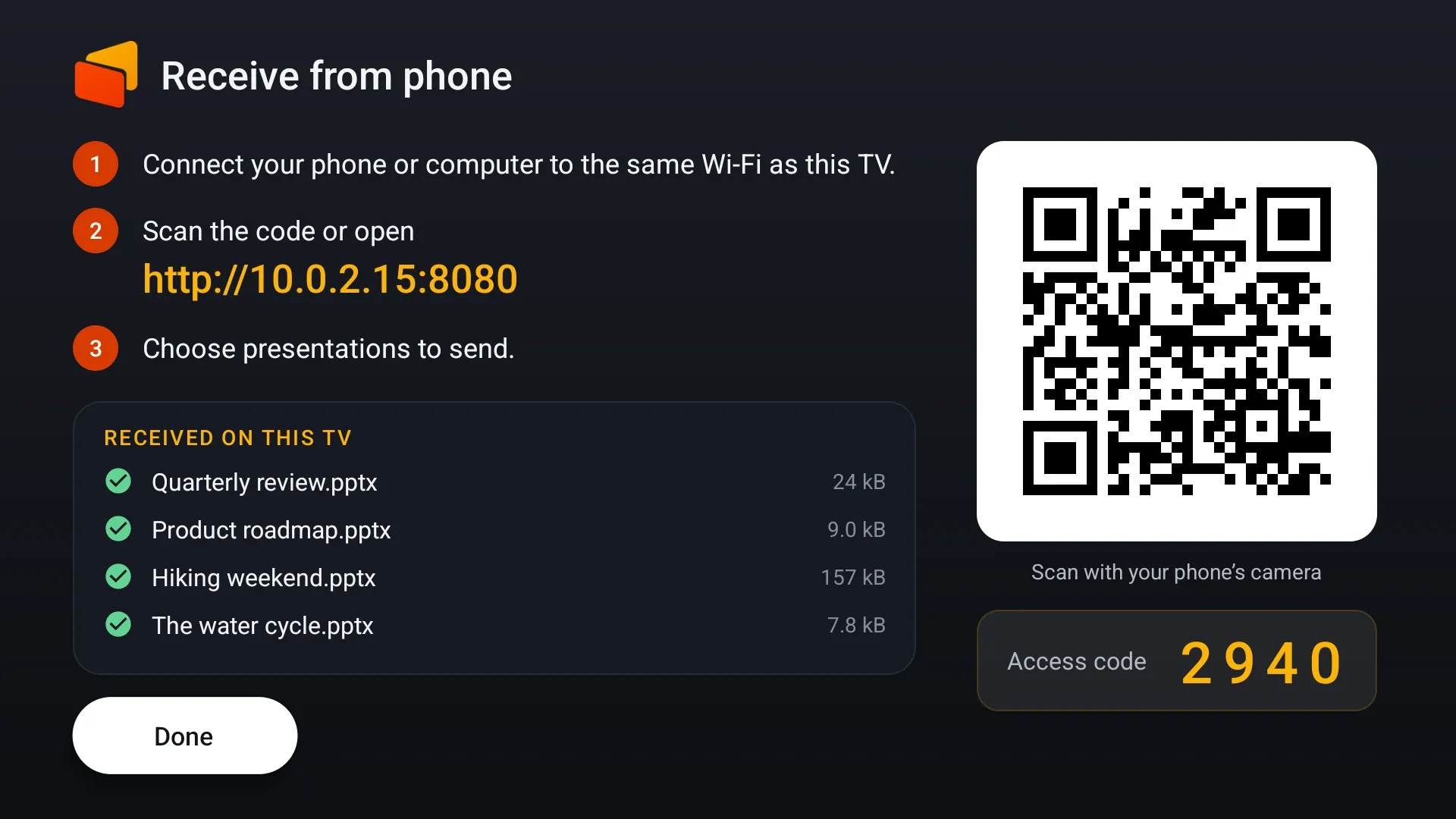
Scan the QR code on the TV (or type the address and the 4-digit code) and send files from your phone’s browser over Wi-Fi. No phone app needed.
-
Open with
Open or share a presentation from a file manager or another app on the TV and choose PPT TV Viewer.
-
Private and offline
The app has no account, no ads and no analytics. Presenting needs no internet connection, and your files stay on your TV.
How it works
From your phone to the big screen in three steps
-
Get your files onto the TV
On the TV, choose Receive from phone. Scan the QR code with your phone’s camera, or type the address shown into a browser and enter the 4-digit code. Then pick your files.
Or open a presentation from another app on the TV, such as a file manager, with Open with.
-
Pick a presentation
Files you send are listed newest first, each with a preview of its first slide. Press OK to present one.
Hold OK on a presentation for more options, such as deleting a file you sent.
-
Present with the remote
OK or Right shows the next animation or slide, Left goes back and Up or Down opens the slide overview.
Press Back twice to end the slide show.
Remote control
Cheat sheet
The keys work while a presentation is showing. A connected keyboard or a Bluetooth presentation clicker works too.
TV remote
- OK or Right
- Next animation or slide
- Left
- Previous
- Up or Down
- Slide overview
- Back twice
- Exit the slide show
- Play/Pause
- Black screen on or off
- Hold OK
- Present or delete (in the list)
In the overview, use Left Right to choose a slide, OK to show it and Back to close. Back also brings a blanked slide back.
Keyboards and clickers
- Page Down / Page Up
- Next / previous
- Right arrow Enter Space N
- Next
- Left arrow Backspace P
- Previous
- B or period
- Black screen
- W or comma
- White screen
- Home / End
- First / last slide
After a black or white screen, press the same key again, Back, or a next or previous key to bring the slide back.
Screenshots
See it on the TV
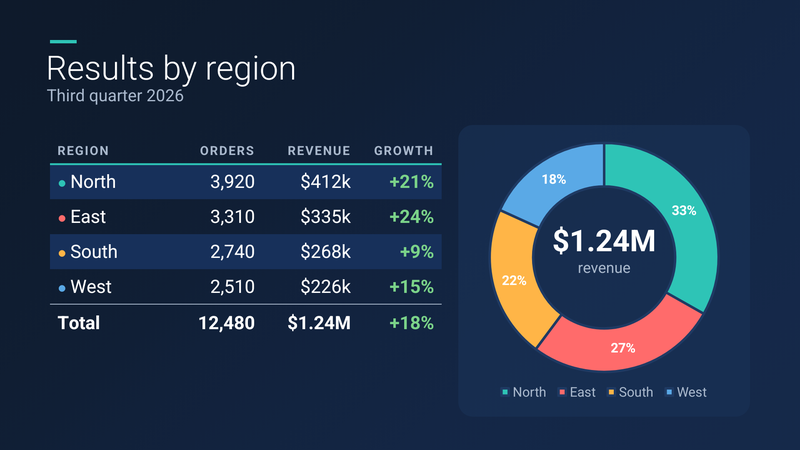
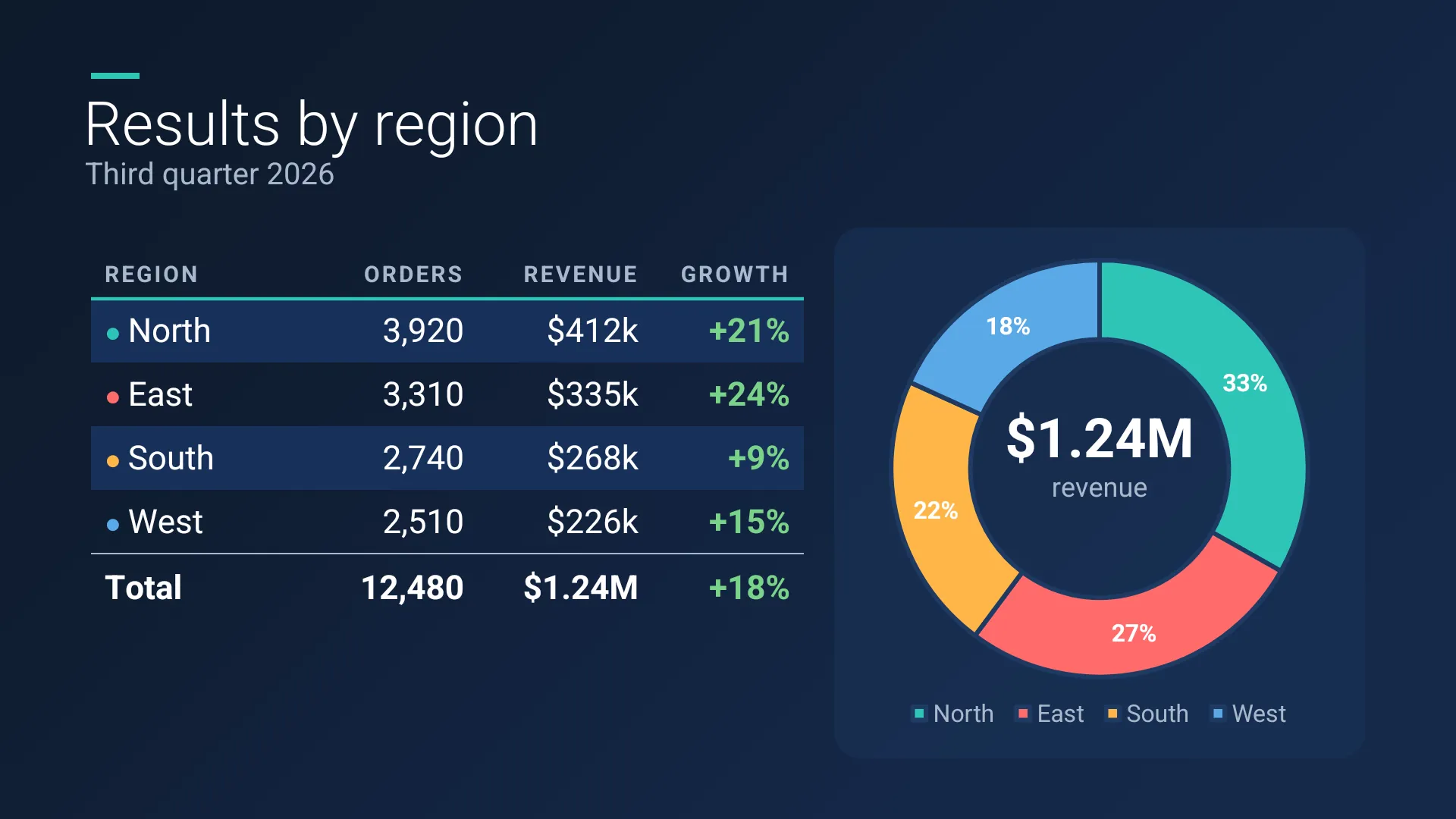
PresentingSlides fill the screen. Click through them with the remote. 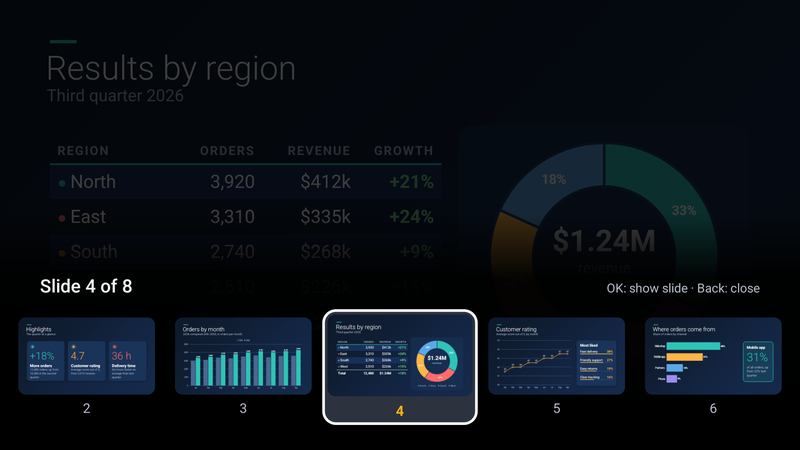
Slide overviewPress Up or Down on the remote to browse the slides and jump to any of them. 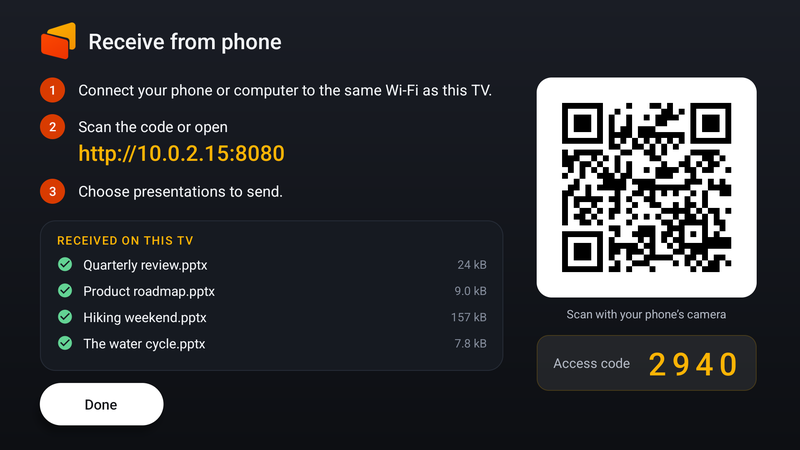
Receive from phoneScan the QR code (or type the address and the 4-digit code) and send files over Wi-Fi. 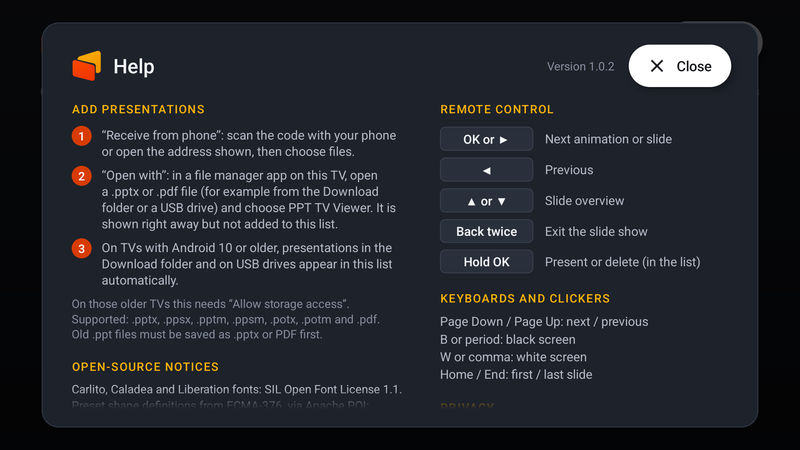
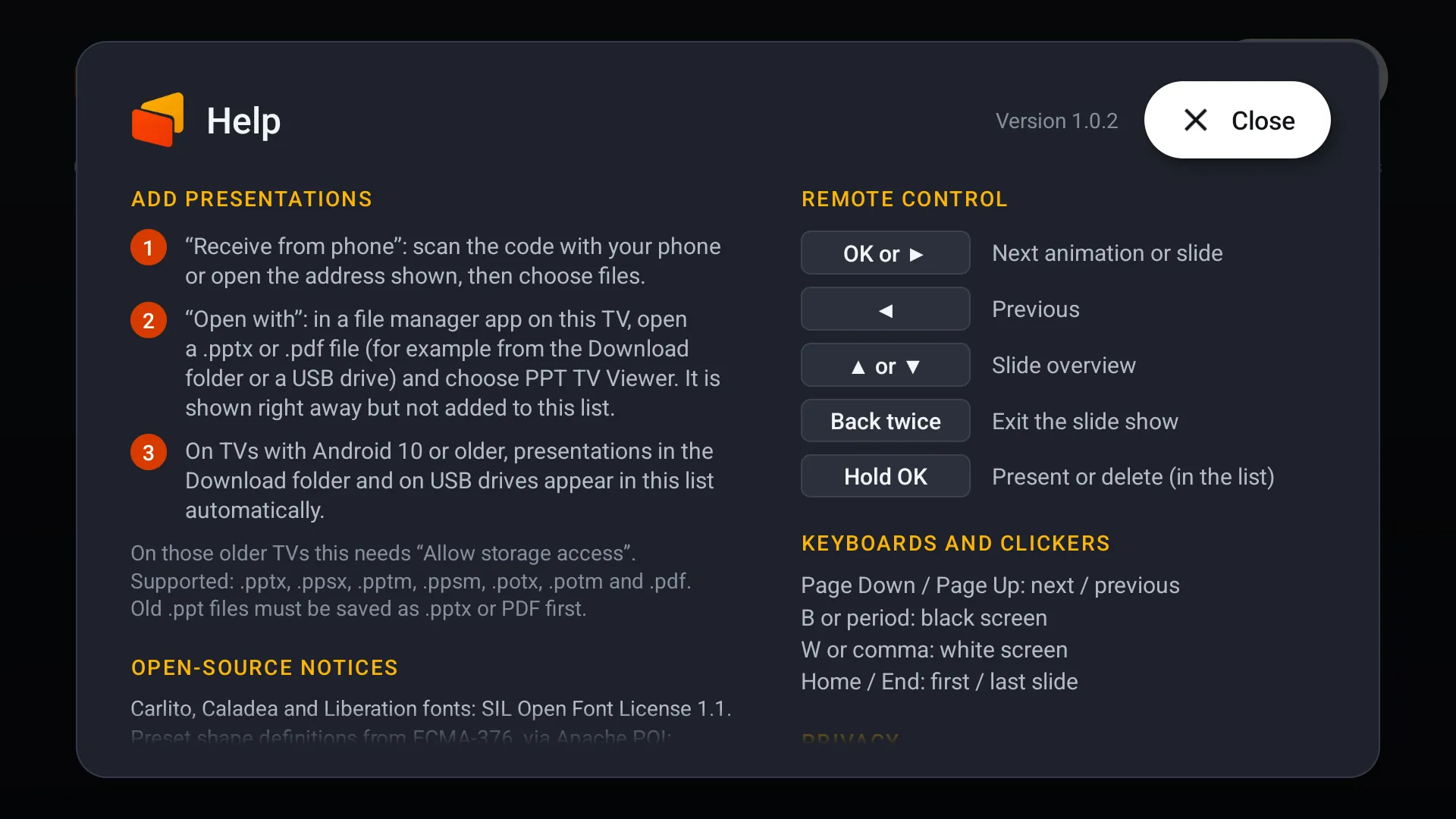
Help on the TVHow to add presentations and which keys to use.
Files and devices
Supported formats and requirements
Supported files
- .pptx
- .ppsx
- .pptm
- .ppsm
- .potx
- .potm
Opens PowerPoint presentations and PDF documents, with each PDF page shown as a slide. The app draws the slides itself, on the TV: text, shapes, pictures, tables, charts and SmartArt.
- Animated builds appear one click at a time, without their motion effects.
- Slide transitions, video and audio are not played. Macros are never run, and hidden slides are skipped.
- Old .ppt files and password-protected files can’t be opened: save them as .pptx or PDF first.
Requirements
- Device
- An Android TV or Google TV device: a TV with one of them built in, or a streaming box or stick.
- System
- Android 7.0 or later.
- Network
- Only for Receive from phone: the TV and your phone, tablet or computer on the same Wi-Fi or local network. Presenting works offline.
- File size
- Up to 1 GB per file with Receive from phone.
FAQ
Questions and answers
Does it work without an internet connection?
Yes. Presenting needs no internet connection at all, and neither does Receive from phone: the TV and your phone, tablet or computer need to be on the same Wi-Fi or local network, and the files go straight from your device to the TV.
Can I edit my presentations?
No. PPT TV Viewer only shows presentations, which keeps it simple to use with a remote. Make your changes on your computer, then send the file to the TV again.
Can it open old .ppt files?
No. Old .ppt files and password-protected files can’t be opened. Save the presentation as .pptx or PDF and send it to the TV again.
Will my slides look exactly like in PowerPoint?
Not always. The app draws the slides itself and uses bundled open-source fonts in place of Office fonts, so some slides can look slightly different from the original. Builds appear without their motion effects, and transitions, video and audio are not played.
If a slide must look exactly the same, save the presentation as PDF and present the PDF.
Which TVs does it work on?
Android TV and Google TV devices with Android 7.0 or later: TVs with Android TV or Google TV built in, and Android TV or Google TV streaming boxes and sticks. It is made for TVs and is not available for phones or tablets.
Can I use a presentation clicker or a keyboard?
Yes. Bluetooth presentation clickers and keyboards connected to the TV work: Page Down and Page Up move through the slides, B or period gives a black screen, W or comma a white screen, and Home and End jump to the first and last slide. See the cheat sheet.
What happens to my files and data?
Your presentations stay on your TV. The app has no account, no ads, no analytics and no tracking, and it sends nothing to us or to anyone else.
Receive from phone is meant for your local network and runs only while its screen is open. The TV doesn’t check where a connection comes from, and the transfer uses plain HTTP (not encrypted), protected by a new access code each time. So use it on a network you trust, and don’t make the TV reachable from the internet. Read the full privacy policy.
This website is separate from the app: it uses Google Analytics only if you accept it in the cookie banner. See the website privacy notice.
Does it cost anything?
No. PPT TV Viewer is free, with no ads and no in-app purchases.
Ready when your next meeting is
Questions, feedback or a slide that doesn’t look right? Email support@mecorelabs.com.
Coming soonon Google Play